HelpYour newsletter
Design and themes
Pick a theme for your website and emails, then change its colors, fonts and shapes.
Themes
A theme is your newsletter's look: its fonts, colors, corners, shadows and spacing, on your website and in your emails. Pick one in Settings, then Design: each theme shows your website and one of your emails in it, and a click applies it. A message lets you undo it.
A new newsletter's get-started list, at the bottom right of the dashboard, starts with the same choice: each theme is a tile in its colors and heading font, in a row that scrolls sideways, and a click on one applies it. Customize, in the message that follows, opens its customizer here, and the list moves on to its next step. Getting started
There are 8: mave.postbox, the black and white look newsletters start with, then Broadsheet, Garden, Midnight, Poster, Swiss, Typewriter, Sunset.
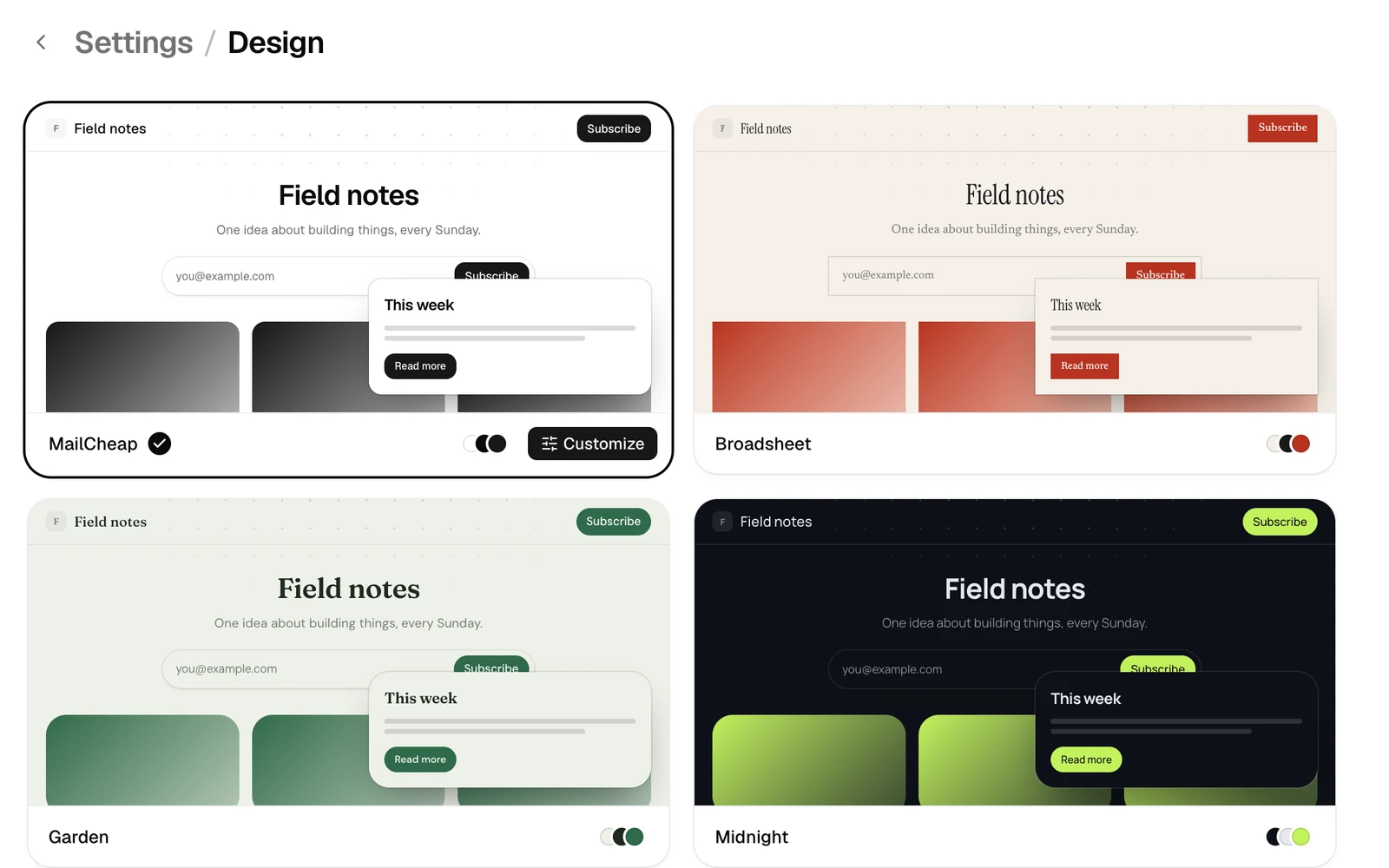
Changing a theme
Customize, on the theme you use, changes it with your website and an email shown as you go:
- Colors: the page, the text and the accent, for buttons and links, in light and in dark. Light and Dark, above them, pick which ones you change, and the website and the email show those. Every other shade comes from these three. An accent changed in one mode only, like your brand's color, follows into the other, a little lighter or darker where its page needs it. When the accent is too light to read as text, links keep the text color and the accent underlines them.
- Fonts: one for headings and one for text, out of 12: Geist, DM Sans, Manrope, Plus Jakarta Sans, Archivo, Schibsted Grotesk, Bricolage Grotesque, Syne, Newsreader, Fraunces, Instrument Serif, JetBrains Mono.
- Heading weight: from regular to black, as far as the heading font goes.
- Corners: square to round, for buttons, cards and pictures.
- Shadow: none, soft, lifted or hard, for cards and the signup form on your website.
- Spacing: the line height and the space between paragraphs.
- Alignment, for emails only: where they sit on a screen wider than them, like a computer's. In the middle, or on the left like a personal email. Picking one shows the email as a computer does. Phones show emails full width either way, and your website stays as it is.
Save with the bar at the bottom, or discard. Reset takes the theme back to how it comes. Applying another theme starts from that one: your changes to the one before go.
Where it shows
- Your website: the home page, issue pages, the author page, the signup popup and the pictures cards show for issues without one. Website and signups
- The pages your emails link to: confirming a signup, unsubscribing and the last-chance email's page.
- Your emails: issues written in the editor or in Markdown, the welcome email, the confirmation email and the last-chance email, with the previews and test emails. An issue sent as HTML designed elsewhere keeps its own look.
In emails
Apple Mail and other apps that load fonts show your theme's. Gmail, Outlook and a few others don't load fonts: they show the closest system font, a sans-serif, a serif or a monospace like your theme's. Emails have no shadows, and Outlook on Windows draws buttons with square corners.
Dark mode
Every theme comes in light and dark. Your website shows each reader the one their device uses, and the buttons at the bottom of every page switch it between System, Light and Dark: their browser remembers the choice. The Design page shows the themes in the dashboard's own mode.
Your emails follow your readers' devices too. Apple Mail and Outlook show your theme's light colors in light mode and its dark colors in dark mode. Gmail's apps show the light colors and darken them on their own when the phone is in dark mode, and Gmail on a computer shows the light colors. An HTML block keeps the colors written in it. The previews show your emails in light, and the customizer in the mode you pick.
The form for your site and the pictures link previews show keep the colors of the mode a theme is made for: light, and dark for Midnight.
From the API and AI assistants
List themes gives the themes, fonts and choices, and update a newsletter sets the theme and what's changed on top of it. Your AI assistant does the same through MCP. API and AI assistants